Physical Address
304 North Cardinal St.
Dorchester Center, MA 02124
Physical Address
304 North Cardinal St.
Dorchester Center, MA 02124

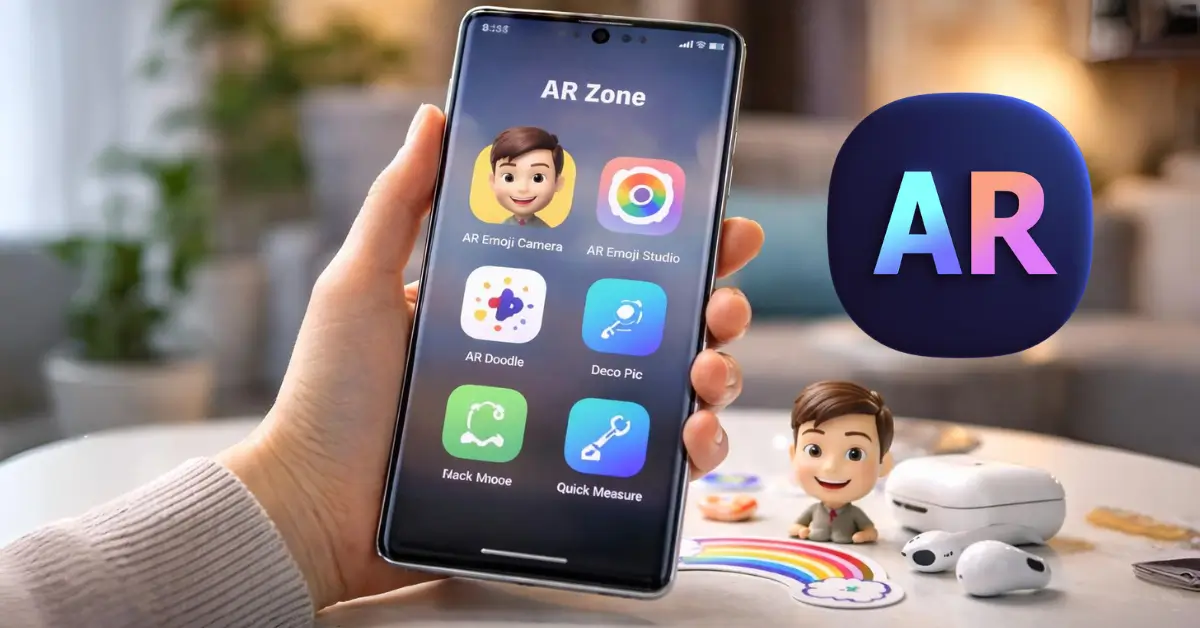
Learn how to use AR Zone on your Samsung phone to create fun AR experiences and personalized emojis easily.
You’ve probably noticed the AR Zone icon sitting quietly on your Samsung phone. Maybe you tapped it once, saw animated avatars and floating doodles, and closed it just as quickly. Or maybe you’ve never opened it at all.
Here’s the truth: AR Zone isn’t just another camera gimmick. When you understand how to use AR Zone on your Samsung phone, you unlock a surprisingly powerful creative tool built directly into your device. No extra downloads. No complicated setup. Just you, your camera, and augmented reality layered over the real world.
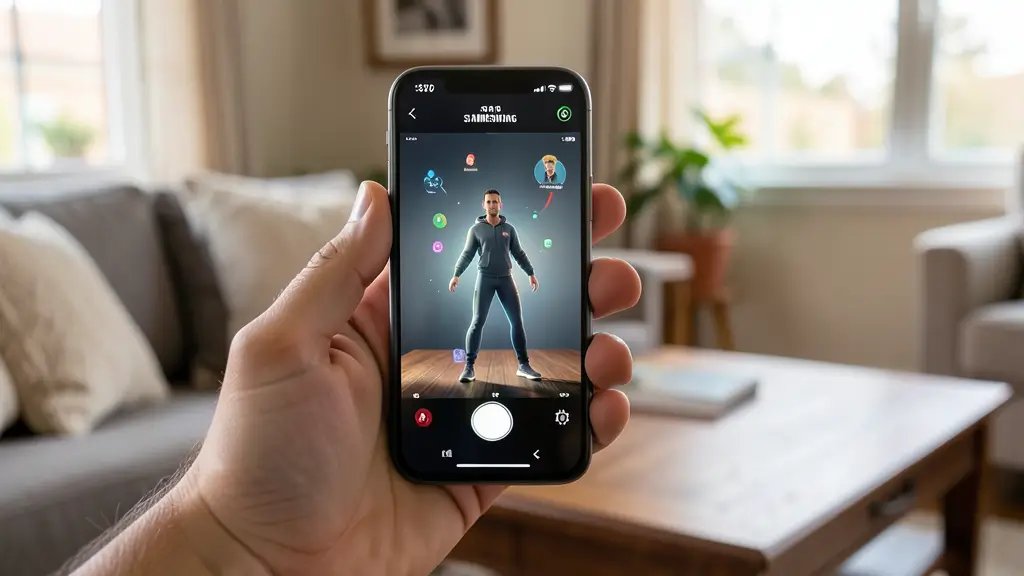
In this complete guide, you’ll learn exactly what AR Zone is, how it works, how to use every major feature, and how to troubleshoot it if something goes wrong. By the end, you won’t just know what AR Zone does, you’ll know how to actually use it confidently.
AR Zone is a built-in augmented reality platform available on many Samsung Galaxy devices. It uses your phone’s camera, sensors, and software to overlay digital objects onto your real-world surroundings.
When you open AR Zone, you’re stepping into a collection of tools powered by augmented reality (AR). Instead of replacing your environment (like virtual reality does), AR enhances what you already see through your camera.
On supported devices such as the Samsung Galaxy S23, Samsung Galaxy Z Fold5, or recent Galaxy A models, AR Zone is integrated directly into Samsung’s One UI system. That means it works seamlessly with your camera, gallery, and keyboard.
When you launch AR Zone, your phone:
You’re not just adding stickers to a photo. You’re interacting with digital objects that respond to your movements in real time.
If you’re wondering where AR Zone is on your Samsung device, you’re not alone. The location can vary slightly depending on your model and software version.
This is the most common method.
On some devices, AR features may appear directly in the camera modes.
If your device supports it, the app should appear immediately.
If you can’t find AR Zone on your Samsung phone, try the following:
Some entry-level models may not include full AR Zone functionality due to hardware limitations.
Once you open AR Zone, you’ll see several tools. Each one serves a different purpose. Let’s break them down so you know exactly what you’re working with.
AR Emoji Camera allows you to create a digital avatar that mirrors your facial expressions in real time.
Here’s how you use it:
After creating your emoji, you can:
To get better results:
If AR Emoji Camera is where you create your avatar, AR Emoji Studio is where you refine it.
Inside AR Emoji Studio, you can:
You can also use these emojis inside the Samsung Keyboard, making your chats more personal and animated.
AR Doodle lets you draw in augmented reality. Instead of sketching on a flat image, you draw in space.
Here’s how it works:
Your doodles can:
This feature works well for:
Because AR Doodle tracks movement, your drawings stay aligned even when you move your phone.
Deco Pic adds AR masks, stamps, and stickers to your live camera view. Think of it as Samsung’s version of social media filters.
You can:
While third-party apps offer similar filters, the advantage here is integration. You don’t need to download anything extra, and the performance is optimized for your Samsung device.
Some higher-end Galaxy devices include Quick Measure, which uses AR to measure objects in the real world.
You can:
Keep in mind:
If your phone doesn’t include depth hardware, this feature may not be available.
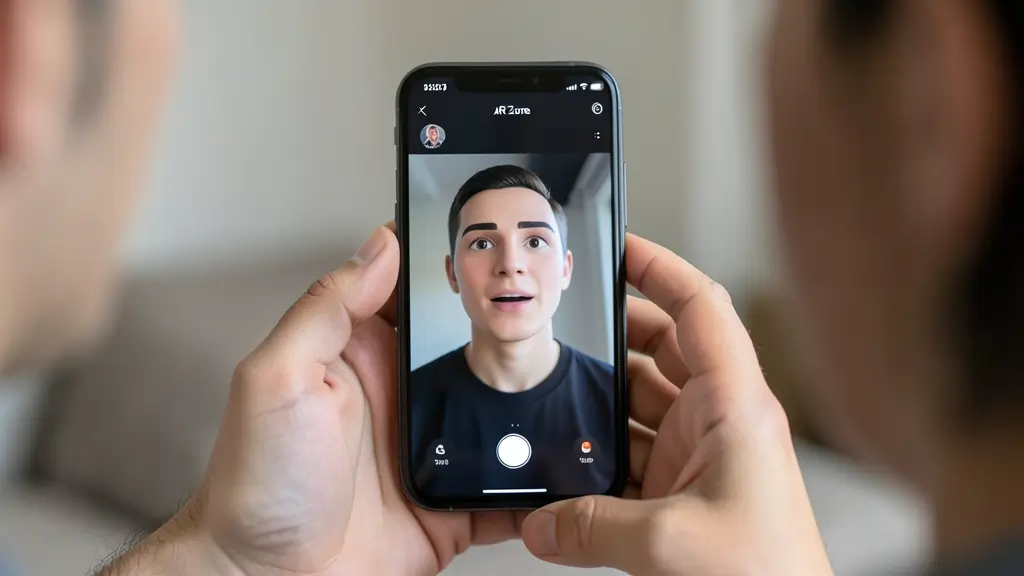
Let’s walk through a full example so you feel comfortable using AR Emoji from start to finish.
Open it from your camera or app drawer.
Tap on AR Emoji Camera inside the AR Zone menu.
Position your face in the frame and take a clear selfie.
Tips:
This is where you personalize everything:
Take your time here. The more accurate your customization, the better your AR Emoji will feel.
Once finished:
Now you’re officially using AR Zone like a pro.
If you create content online, AR Zone can help you stand out.
Instead of standard selfies, you can:
Short-form platforms like Instagram and TikTok thrive on creative visuals. Augmented reality increases engagement because it adds motion and novelty.
You can use AR Zone to:
When you combine AR Zone with storytelling, you don’t just post content, you create experiences.
Even though AR Zone is built-in, you might run into occasional issues.
Try this checklist:
To clear cache:
If your emoji lags or doesn’t mirror your face accurately:
Face tracking relies heavily on lighting and positioning. Small adjustments can make a big difference.
Not all Samsung phones support every AR feature.
Generally, you’ll find AR Zone on:
Premium devices typically offer smoother tracking and more features because of better cameras and sensors.
If you’re unsure whether your model supports AR Zone, check your device specifications or search for your exact Galaxy model online.
Because AR Zone uses your camera and facial mapping, privacy matters.
Here’s what you should know:
Always review app permissions in your Settings menu if you have concerns. Samsung’s privacy policy provides detailed explanations of data handling.
You might wonder how AR Zone compares to third-party augmented reality apps.
Here’s the difference:
Built-in AR Zone:
Third-party AR apps:
If you want convenience and reliability, AR Zone is a solid choice. If you need advanced creative tools, you may explore specialized AR platforms.
AR Zone is a built-in augmented reality feature on Samsung Galaxy devices that allows you to create AR emojis, doodles, and interactive camera effects using your phone’s camera.
You can open AR Zone through the Camera app under “More” or find it in your app drawer by searching for AR Zone.
If AR Zone is missing, your phone may not support it, your software may be outdated, or the feature may be disabled. Updating your device often resolves this issue.
Yes, AR Zone is free and comes pre-installed on supported Samsung devices.
On most devices, AR Zone is a system app and cannot be fully deleted. However, you may be able to disable certain features.
AR Zone isn’t just a hidden camera mode. It’s a creative toolkit sitting inside your Samsung phone, waiting to be used.
When you understand how to use AR Zone on your Samsung phone, you gain more than animated emojis. You gain a way to:
Now it’s your turn.
Open your camera. Tap AR Zone. Create your first AR Emoji. Draw something in the air. Share a playful clip with friends.
The more you explore, the more natural it feels.
And once you see what your phone can really do, you’ll wonder why you didn’t start using AR Zone sooner.